Procreate Dreams 2 Is Here: Everything You Need To Know
Animation on the iPad just leveled up. With Procreate Dreams 2, new tools and workflows are opening up exciting creative possibilities.



The award-winning animation app Procreate Dreams just leveled up with powerful new features that make it easier than ever to create stunning animations. To celebrate, we’ve teamed up with Procreate to bring you fresh classes, a live session, and updated lessons from Skillshare Top Teachers and creators.
Dive in and get familiar with features like selections and transform, find your rhythm with the redesigned timeline, and bring your animations to life in the newly revamped Flipbook.
Redesigned Timeline
Procreate Dreams 2 introduces an upgraded timeline built for speed, flexibility, and control, whether you’re polishing details or rearranging entire scenes.
Move Content Freely in Compose Without Breaking Keyframes
In Compose, you can now reposition artwork without affecting your existing animation data, making layout changes faster and safer while preserving timing and motion.
Powerful Multi-Select
Select multiple keyframes, clips, or layers at once to move, scale, or adjust them in bulk. It’s a huge time-saver when refining timing, spacing, or choreography across a sequence.
Resize Your Stage and Timeline On the Fly
Shift the size of the Stage and Timeline as you work, so you always have the right balance between drawing space and animation control — no interruptions, just smooth workflow.
Flipbook
The new Flipbook feature streamlines classic frame-by-frame animation, creating a fluid relationship between drawing and motion.
Multiple Tracks for Layered Animation
Work across multiple tracks to separate characters, effects, and backgrounds, giving you more control over complex scenes.
Blend modes for Richer Visuals
Apply blend modes directly in Flipbook to experiment with light, texture, and atmosphere without leaving your animation flow.
Multi-Select for Frame Control
Select and modify multiple frames at once to move, duplicate, or adjust sequences in bulk — perfect for refining hand-drawn motion with speed and consistency.
New Drawing and Painting Features
Building on Procreate’s celebrated brush engine, Dreams 2 delivers even more precision for animators who care about detail.
Selection & Transform
The feature so many animators are excited about— quickly select, move, scale, rotate, and adjust parts of your artwork across frames. Use it to refine poses, correct spacing, and keep animation on-model
Expanded Brush Library
This is where Procreate’s drawing engine comes into full view. 100 new Procreate brushes make it easier than ever to draw, paint, and animate, whether you’re zoomed way in or working at full canvas view.
Expanded Brush Control
Achieve the exact look you want with responsive brushes designed to stay crisp and controllable throughout the animation process.
Ready to Learn Procreate Dreams 2 from the Pros?
To celebrate the launch of Procreate Dreams 2, we’ve teamed up with Procreate to bring you fresh classes, a live session, and updated lessons from Skillshare Top Teachers and creators.
Animate a Scene in Procreate Dreams 2
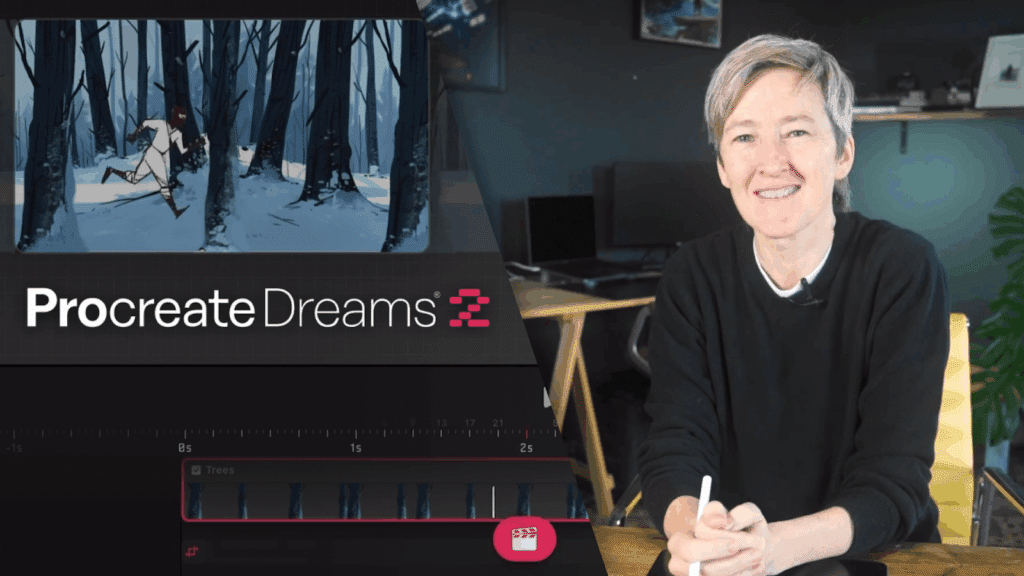
Siobhan Twomey is a filmmaker and animator who’s worked on projects for brands like Disney and Sony Pictures Animation. In this exclusive new class, she’ll guide you through all the latest Procreate Dreams 2 updates as you bring a cat to life against the Kyoto skyline at dusk. Along the way, you’ll master the revamped Flipbook, experiment with dynamic new brushes, and explore an updated interface that makes animating easier and more fun than ever.
Procreate Dreams 2: Playful Animation for Artists
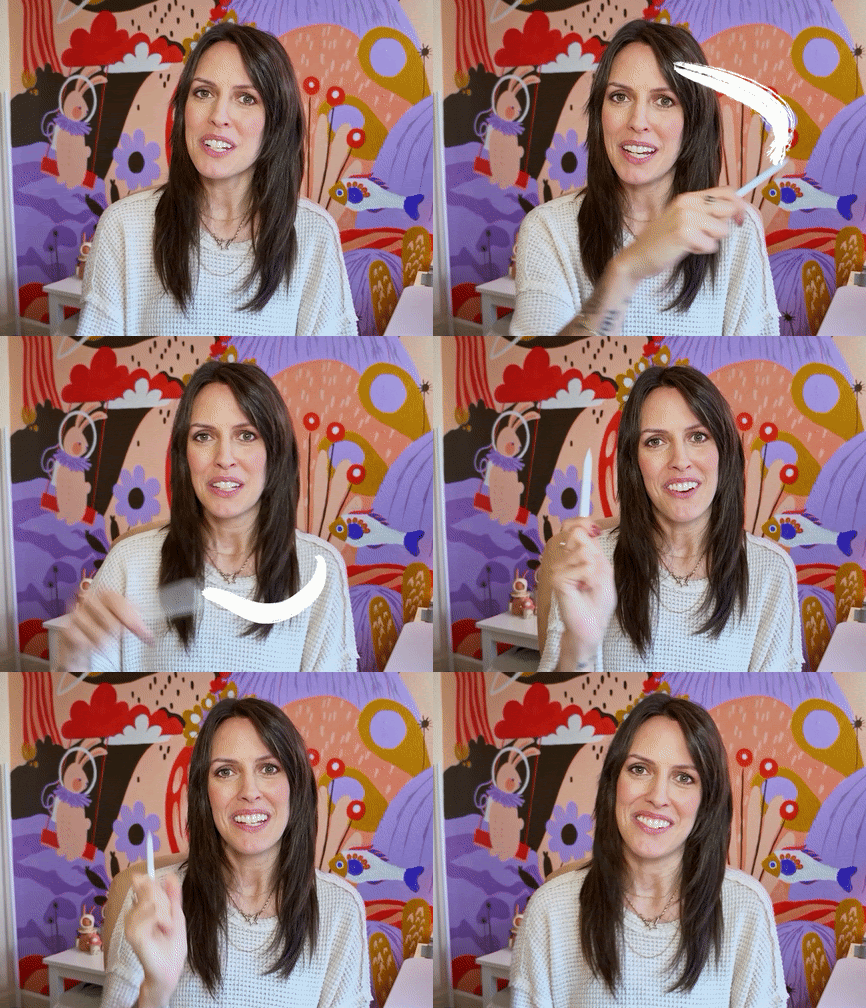
Top Teacher Peggy Dean | The Pigeon Letters walks you through Procreate Dreams 2 and its updated features. Learn how to bring your artwork to life in a way that feels approachable and low-pressure, even if you’ve never animated before.
This class is perfect for artists and illustrators who are curious about 2D animation and motion illustration, but don’t want to get lost in technical overwhelm.
What You’ll Learn:
- How Procreate Dreams works, without jargon or confusion
- The updated tools and features in Procreate Dreams that make animation easier than ever
- Simple animation and motion techniques that instantly add life to your artwork
- How to create smooth, natural movement that feels intentional and polished
- Ways to use layers, timing, and depth for subtle visual storytelling and parallax
Procreate Dreams 2- Elevate Your Social Media Content With Simple Animations
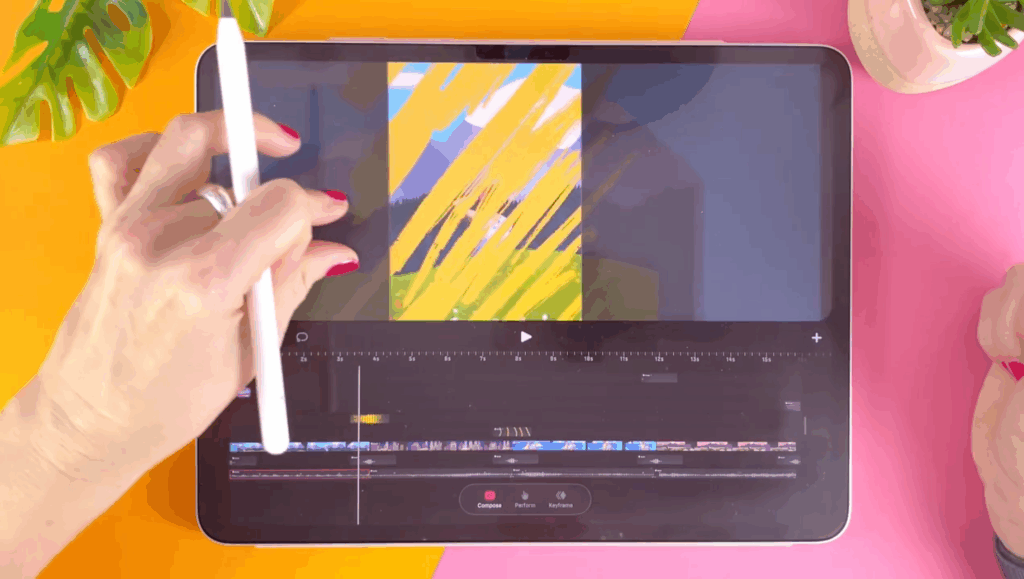
Artist and educator Jutta Schneider shows how adding motion can turn a quick glance into real interest on social, using Procreate Dreams 2 in a way that fits your personal style and stays approachable.
Start by building a solid foundation, getting familiar with the Procreate Dreams interface and the basics of animation, including what animation actually is and how the three animation methods work: frame-by-frame animation with the Flipbook, keyframing, and perform mode.
From there, take a static photo or illustration and add small, playful movements to make it more engaging, without turning it into a complex animation project.
In the final part of the class, focus on transitions, exploring how to connect images using masks, motion, and opacity, and how these techniques can be reused as simple templates for future projects.
Along the way, you’ll work with features like the Animation Brush Library, learn how to animate using Flipbook, and create smooth, social-media-ready animations. By the end of the class, you’ll have a short animated clip and a clear understanding of how to use Procreate Dreams 2 to add motion to your own work.
Procreate Dreams: Create Fun Animations on Your iPad
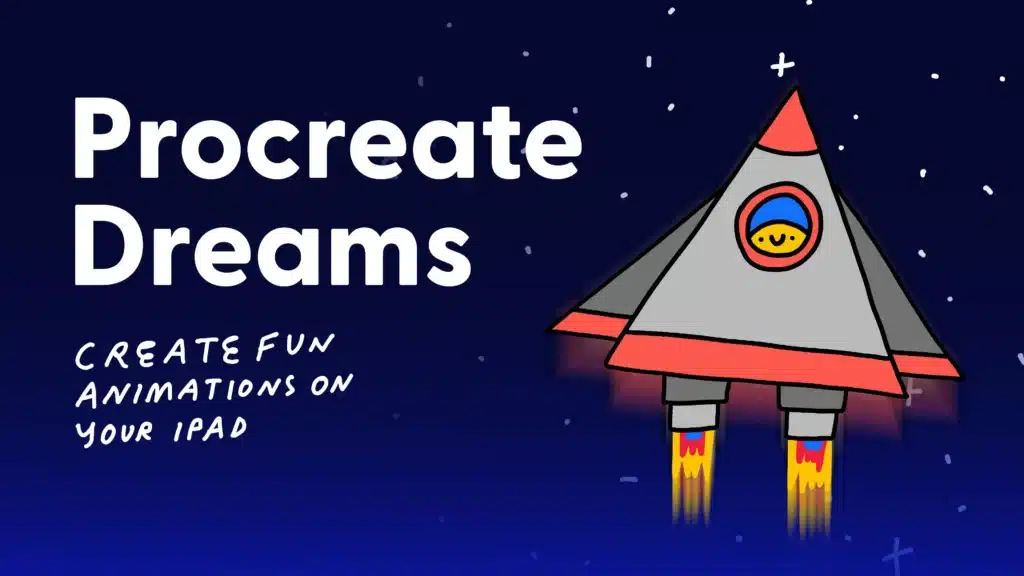
Join multi-hyphenate artist Rich Armstrong as you learn how to use Procreate Dreams to create fun animations on your iPad. Specifically, create frame-by-frame animations using Flipbook, and streamline your animation process using Keyframe and Performing modes in Procreate Dreams.
During the class you’ll learn how to:
- Animate using frame-by-frame, performing, and keyframe methods—and how to combine them.
- Plan your animations and create storyboards.
- Use onion skinning.
- Adjust easing to make animations more realistic.
- Navigate Procreate Dreams with ease.
- Import assets from Procreate (the drawing app).
- Use the hidden Procreate Dreams gestures.
- Export an animation from Procreate Dreams.
You’ll learn how to use Procreate Dreams by creating a short animation that animates in from nothing, stays on screen for a few frames, and then animates out back to nothing.
Your Next Animation Starts Here
We’re just getting started with Procreate Dreams 2. More classes are landing soon to help you keep experimenting, refining your skills, and bringing your ideas to life.
Alison Kendrick
Alison is a digital content strategist by day, and a podcaster + tabletop RPG enthusiast by night.
Try Skillshare for free! Sign up for a 7 day free trial today!
Get Started- Unlimited access to every class
- Supportive online creative community
- Learn offline with Skillshare's app